The case list
An office sees every open case, how many are waiting on photos, and how many need staff review.
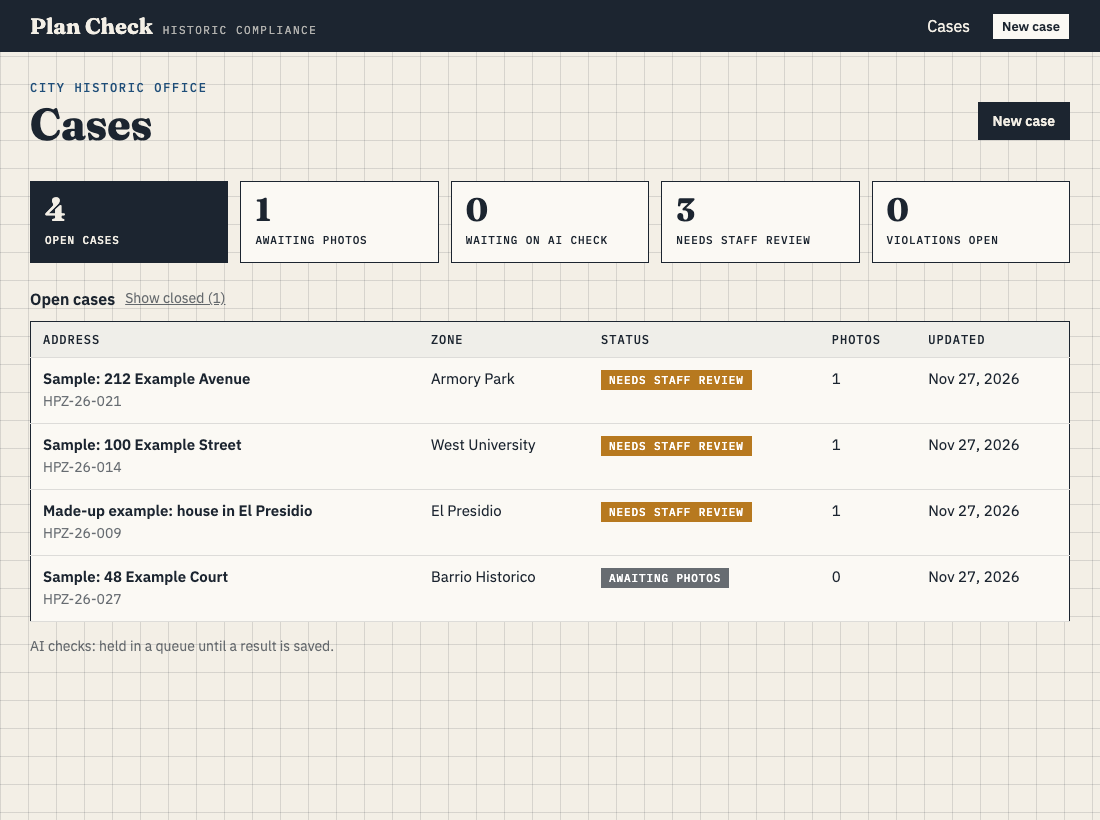 Sample case. The plan and building are drawings made for testing.
Plan Check compares photos of the finished work to the approved plans and marks each difference, so your staff can see what to look at before anyone drives out.
Staff open a case for an approved project and attach the approved plans.
Anyone with the case link uploads photos of the finished work from a phone. No account needed.
AI compares the photos to the plans and marks each difference with a numbered box, on the plan and on the matching photo.
Staff confirm or dismiss each finding. Confirmed findings fill in a draft notice to the owner.
An office sees every open case, how many are waiting on photos, and how many need staff review.
Sample case. The plan and building are drawings made for testing.
Each difference gets a numbered box on the photo and the matching box on the plan, so staff can check it at a glance.
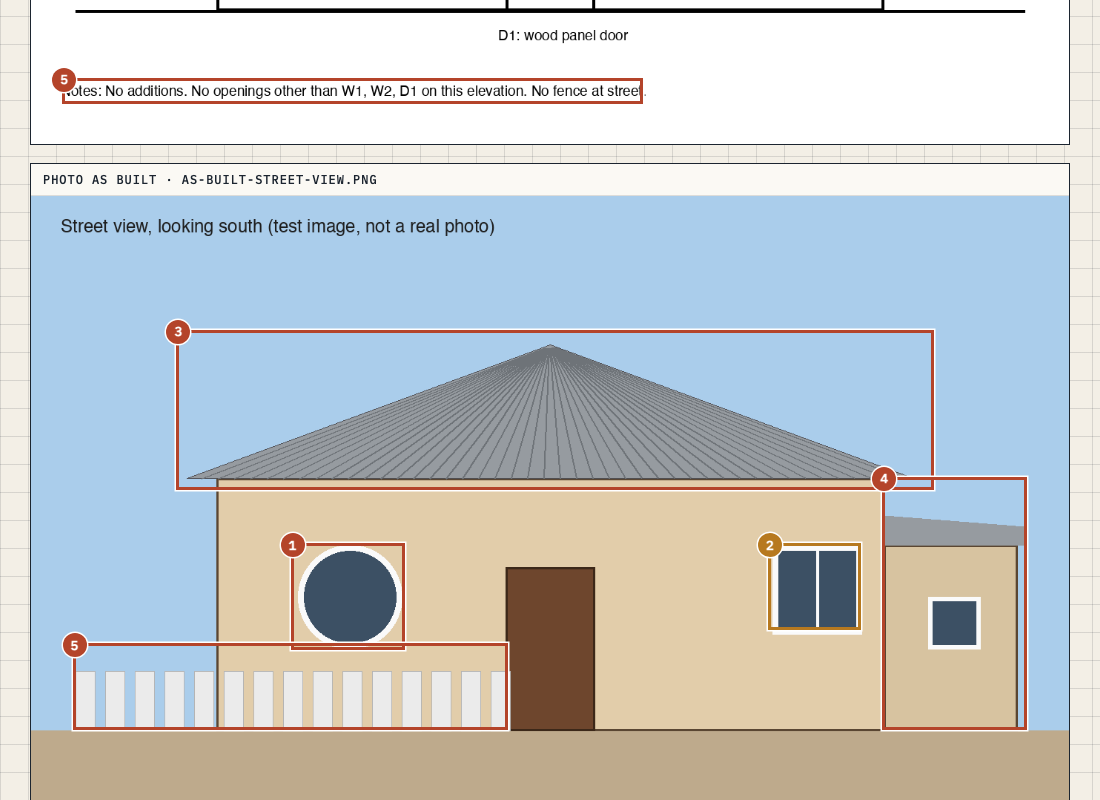 Sample case. The plan and building are drawings made for testing.
They approve exterior work in historic zones and often have few or no inspectors trained to check the finished work against the approval.
Boards that approve a specific design can use the same check to confirm the finished work matches it.
Planning departments that attach stipulations to an approval can confirm each one was met.
Plan Check finds the differences and shows exactly where they are. A staff member confirms or dismisses each one with a single click.
Confirmed findings fill in a notice to the owner, written and ready. Staff choose when it goes out.
Your staff do, every time. Plan Check finds the differences and marks exactly where they are. A staff member confirms or dismisses each one with a single click. It never closes a case or calls a violation on its own.
Anyone with the case link: the owner, a contractor, a neighbor, a board member. No account, no app. The link only accepts photos. It cannot show plans, other photos, findings or case history.
One database and one folder of images on the server that runs Plan Check. Nothing is stored anywhere else. Each staff member signs in with their own account, and every decision is recorded with their name and the date. Staff download a full copy of any case with one click, for a records request or your own files. Every case link turns off the moment the case is closed.
Start with the free 90-day pilot, up to 25 cases, no cost. After the pilot we send a written quote sized to your office.
After the pilot, pricing is by written quote, sized to your office. Contact us.
Up to 25 cases, one office, no cost.
A 20-minute showing, run on your own office's closed cases.